Spotlight vs Finder Search: Which Finds Files Better?
Spotlight and Finder search use the same index, so why do they find different things? When to use each, the search tricks that work, and how to fix a broken index.

· 9 min read
Your Mac has two search boxes for files. Press ⌘Space and you get Spotlight. Press ⌘F in a Finder window and you get Finder search. They look different, they show different results, and most people pick one out of habit.
The surprising part is that they’re powered by the same thing. Knowing that, and knowing what each interface is good at, makes it much easier to find a file on the first try.
They search the same index
In the background, macOS keeps a database of your files called the Spotlight index. Processes named mds and mdworker read each new or changed file and record its name, kind, dates, and the text inside it: words in documents, PDFs, emails and, on recent versions, text in images.
Both Spotlight and Finder search ask that same index. That has two practical consequences:
- If one can’t find a file at all, the other usually can’t either. Switching tools rarely helps. Fixing the index does.
- The difference is in how results are shown. Spotlight ranks and trims. Finder lists everything and lets you narrow it down.
When Spotlight is the better choice
Spotlight is built for speed. It’s available from any app, it guesses what you want as you type, and it searches more than files: apps, settings, contacts, emails, messages, calendar events and the web. Recent versions of macOS added a dedicated files view with filters, and in macOS 27 Golden Gate Spotlight shares its search box with Siri, but the basics haven’t changed.
Spotlight wins when:
- You remember part of the name, like “q3 budget”, and want to open it straight away.
- You’re in another app and don’t want to open a Finder window first.
- You want an app, a setting or a contact, not just a file.
Spotlight tricks worth knowing
- Filter by kind. Type
kind:pdf budgetorkind:image lisbonto see only that type. Other useful kinds:presentation,spreadsheet,folder,movie. - Filter by date.
date:yesterdayormodified:todaynarrows to recent files. - Use quotes for an exact phrase:
"project brief". - Hold
⌘on a result to see where it’s saved, and press⌘Returnto show it in Finder instead of opening it.
Where Spotlight falls short: it only shows a short list, it decides the ranking for you, and once you close it the results are gone. If the file you want is the twelfth-best match, you may never see it.
When Finder search is the better choice
Finder search shows every match in a normal Finder window, so you can sort, preview with Space and drag results straight into another app. It’s the better tool when you’re looking for a group of files or don’t know the name at all.
- Open a Finder window and press
⌘F. - Choose where to look in the bar below the toolbar: This Mac or the current folder. To make the current folder the default, go to Finder → Settings → Advanced and set “When performing a search” to Search the Current Folder.
- Click the + button to add rules such as Kind is PDF or Created date is within last 3 months. Add as many as you like.
- Pick Other… from the first pop-up to search by less obvious details: file size, pixel width, author, camera model, duration and dozens more.
- As you type in the search field, choose Name matches from the suggestions if you only want file names, not file contents. This one change cuts a lot of noise.
Save a search as a Smart Folder
Click Save under the search field and give it a name. It appears in the sidebar as a Smart Folder that updates itself. “PDFs from the last 30 days” or “Screenshots this week” are good ones to keep.
Search results look best in list view, where you can sort by date or size. If Finder keeps showing them as icons, here’s how to make list view the default.
Side by side
| Spotlight (⌘Space) | Finder search (⌘F) | |
|---|---|---|
| Best for | Opening one file you know | Finding all files that match |
| Opens from | Any app | A Finder window |
| Results | A short ranked list | Every match, sortable |
| Filters | Typed, like kind: and date: | Rules you add with +, plus hundreds of attributes |
| Searches beyond files | Apps, settings, mail, contacts, web | Files and folders only |
| Save for later | No | Yes, as a Smart Folder |
| Index | The same Spotlight index for both | |
When neither one finds your file
Because both use the same index, a file that’s missing from both usually comes down to one of these:
- The folder is excluded. Check System Settings → Spotlight → Search Privacy. Anything listed there is invisible to both searches.
- It’s somewhere Spotlight skips. Hidden folders, the Library folder, app bundles and some external or network drives aren’t indexed by default.
- Indexing hasn’t finished. After a macOS update or a new Mac, indexing can take hours. If Spotlight shows “Indexing…”, give it time.
- The index is damaged. Searches that used to work stop finding things, or results are oddly thin. Rebuilding fixes it.
How to rebuild the Spotlight index
- Open System Settings → Spotlight and open Search Privacy.
- Click + and add your startup disk (usually “Macintosh HD”).
- Wait a few seconds, then select it and click – to remove it again.
macOS throws the old index away and builds a new one. Expect search to be patchy for an hour or more while it works. If you’re comfortable in Terminal, these do the same job and let you check progress:
mdutil -s /          # is indexing on for this disk?
sudo mdutil -E /     # erase and rebuild the index
What about text inside images?
Since macOS Monterey, the Spotlight index includes text that Live Text recognises in images. Search for a word that appears in a screenshot, and both Spotlight and Finder can surface it. It’s a big improvement, with limits: results for large screenshot folders can be hit and miss, you can’t see where in the image the match is, and copying text means opening each image one at a time.
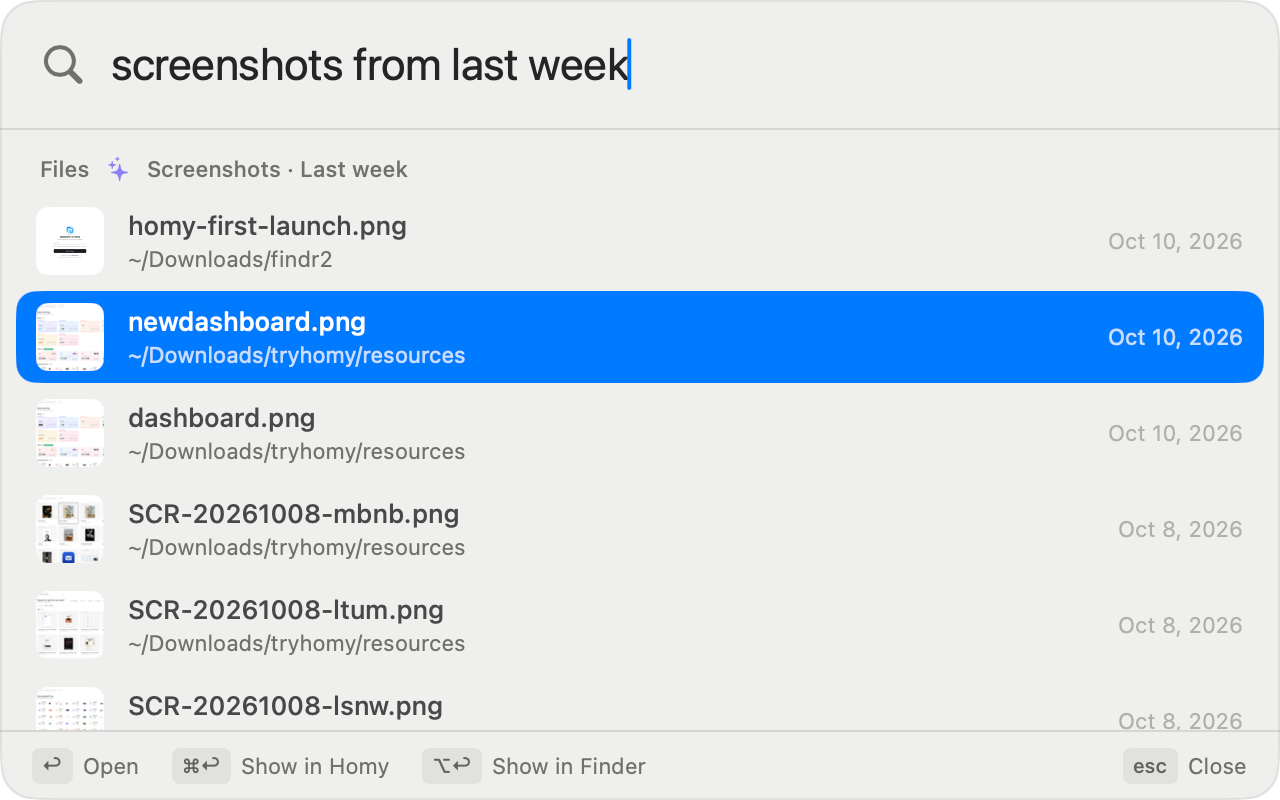
That gap is one of the reasons I built Homy. It reads the text in your screenshots and PDFs on your Mac, lets you search it in plain English, and copies text out of several images at once.
The verdict
Neither one “finds files better”, because they find the same files. Spotlight is faster for a single file you can half remember. Finder search is better for everything else: groups of files, vague memories, filtering, and searches you want to keep. Learn the kind: trick in Spotlight and the + rules in Finder, and you’ll cover most situations.
Where both struggle is the search you’d say out loud, like “the PDF I downloaded from Gmail last week” or “that screenshot with the Wi-Fi password”. That’s what Homy’s natural-language search is for. And if you’re wondering what else is out there, we compared the main options in Is there a better file manager than Finder?
Frequently asked questions
Do Spotlight and Finder search use the same index?
Yes. Both read the same Spotlight index that macOS builds in the background. The difference is the interface: Spotlight shows a short list of top matches from everywhere, while Finder search shows every match and lets you filter by kind, date, size and other attributes.
Why can Spotlight not find a file I know exists?
The usual causes are that the folder is excluded under System Settings > Spotlight > Search Privacy, the file lives in a hidden or system location Spotlight skips, the drive is not indexed, or the index is damaged. Rebuilding the index fixes the last one.
How do I rebuild the Spotlight index on Mac?
Open System Settings > Spotlight, open Search Privacy, add your startup disk to the list, then remove it again. macOS rebuilds the index, which can take an hour or more. In Terminal, sudo mdutil -E / does the same thing.
Can Spotlight search the text inside images?
Yes. Since macOS Monterey, Spotlight indexes text that Live Text recognises in images, so a search can match words inside a screenshot or photo. Results can be patchy for large libraries, and you cannot copy the text from the results list.