How to Set List View as the Default for Every Finder Folder
Make Finder open every folder in list view: the View Options settings to change, why some folders ignore them, and the .DS_Store reset that fixes it.

· 7 min read
Finder opens new folders in icon view, which is fine for a folder of photos and annoying for everything else. In list view you can see dates, sizes and file types at a glance, sort by any column and expand folders without opening them.
macOS lets you make list view the default, but there’s a catch that trips up almost everyone: folders you’ve opened before remember their own view and ignore the new default. This guide covers both the setting and the fix.
Make list view the default in 5 steps
- Open a Finder window. Your home folder is a good choice (
⇧⌘H), but any ordinary folder works. Avoid search results, AirDrop and Recents, which have their own settings. - Switch to list view: press
⌘2, choose View → as List, or click the list icon in the toolbar. - Open View Options with
⌘Jor View → Show View Options. - Tick Always open in list view and Browse in list view. The first makes this window open in list view. The second keeps list view when you double-click into subfolders. While you’re here, pick your columns, your sort order and the text size you want everywhere.
- Click Use as Defaults at the bottom of the panel.
Open a few folders. Any you’ve never customised should now open in list view with your columns and sort order. If some still open as icons, carry on.
Why some folders ignore your default
Every time you change how a folder looks, Finder saves that folder’s view in a hidden file called .DS_Store inside it. It holds the view style, icon positions, sort order and window size.
When Finder opens a folder, those saved settings win over your default. So if you once looked at your Downloads folder in icon view, it will keep opening in icon view forever, no matter how many times you click Use as Defaults.
For a handful of folders, the easy fix is to visit each one, switch it to list view and tick Always open in list view in its View Options. For dozens of folders, reset them all at once.
Reset every folder to list view
Deleting the .DS_Store files makes Finder forget each folder’s own settings, so they all fall back to your default. Your files are untouched. You only lose window sizes, icon positions and sort orders, and Finder writes fresh .DS_Store files as you browse.
- Set up the default first, as above, so there’s something to fall back to.
- Open Terminal (in Applications → Utilities) and run this. It only touches folders inside your home folder:
find ~ -name ".DS_Store" -type f -delete 2>/dev/null
killall Finder
The first line finds and deletes every .DS_Store under your home folder. The 2>/dev/null part hides “Operation not permitted” messages for protected folders, which is normal. The second line restarts Finder so it rereads everything. Your Finder windows close and reopen in a second.
Stop USB and network drives creating new .DS_Store files
Finder also leaves .DS_Store files on USB sticks and shared network folders, which is why Windows users sometimes see them. You can tell macOS not to write them there, so those drives always use your default view:
defaults write com.apple.desktopservices DSDontWriteNetworkStores -bool true
defaults write com.apple.desktopservices DSDontWriteUSBStores -bool true
killall Finder
To undo it, run the same commands with false instead of true.
Search results and other special windows
Some windows keep their own view no matter what you set for folders:
- Search results. Finder keeps a separate view for search windows. Press
⌘F, search for anything, switch to list view and set up your columns with⌘J. New searches open the same way. Our guide to Finder search has tips for getting more out of that window. - Recents, iCloud Drive and AirDrop each remember the last view you used in them. Set each one to list view once.
- The Desktop is always icons. You can tidy it with View → Use Stacks, but it never becomes a list.
Make list view work harder
A few settings turn list view from “a list of names” into the most useful view in Finder:
- Add Date Added. In View Options, turn on the Date Added column. It shows when a file arrived in this folder, which is often more useful than when it was modified, especially in Downloads.
- Calculate all sizes. Shows the size of folders, not just files. It can be slow on huge folders, so turn it on where you need it.
- Use relative dates. Shows “Today” and “Yesterday” instead of full dates.
- Show the path bar and status bar.
⌥⌘Pand⌘/show where a file lives and how much free space you have. - Group By. Group by Kind or Date Last Opened to break a long list into sections.
List view keyboard shortcuts
Once your folders are in list view, sorting by date makes batch jobs easier too, like renaming a set of files in the order they were taken.
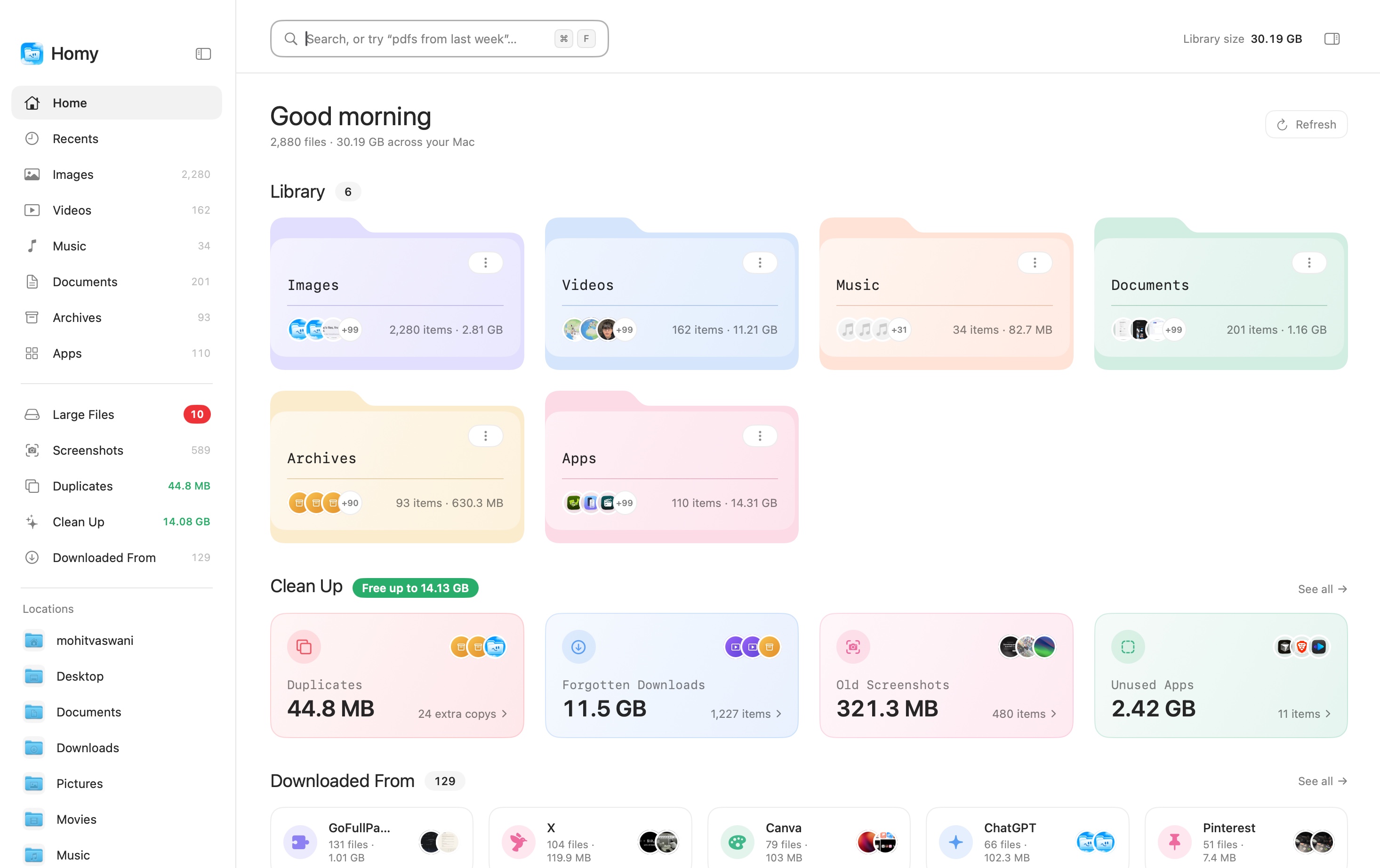
If you spend most of your time hunting for files rather than browsing folders, a list of names only gets you so far. Homy shows your files by type as big thumbnails or a list (⌘1 and ⌘2), and remembers your choice without any hidden files. See how it works, or read our honest roundup of Finder alternatives.
Frequently asked questions
Why does Finder keep switching back to icon view?
Usually because that folder has its own saved view settings in a hidden .DS_Store file, which beat the defaults. Open the folder, switch it to list view, open View Options with Command-J and turn on “Always open in list view”. Or reset the saved settings for every folder with the Terminal command in this guide.
Is it safe to delete .DS_Store files?
Yes. .DS_Store files only store how Finder displays a folder: view style, icon positions, sort order and window size. Deleting them loses those display preferences, never your files. Finder creates new ones as you browse.
Can I make search results open in list view too?
Yes. Search results have their own view settings. Finder keeps a separate view for search windows. Run any search, switch the window to list view and set up the columns with Command-J. New searches open the same way.
What is the keyboard shortcut for list view on Mac?
Command-2 switches the current Finder window to list view. Command-1 is icons, Command-3 is columns and Command-4 is gallery.