Is It Safe to Delete .dmg Files After Installing an App?
Yes, once the app is in your Applications folder. Here’s how to check, the one case where deleting a .dmg breaks an app, and how to clear old installers fast.

· 6 min read
Open your Downloads folder and you’ll probably find a graveyard of .dmg files: browsers, chat apps, that video converter you used once. Each one is anywhere from a few megabytes to a few gigabytes, and it’s easy to worry that deleting one will break the app it installed.
It won’t, as long as you installed the app properly. Here’s how to be sure.
What a .dmg file actually is
A .dmg is a disk image: a single file that acts like a USB stick. Double-click it and macOS “mounts” it, so a new drive appears in the Finder sidebar and on your desktop. Inside, most developers put the app and a shortcut to your Applications folder, with an arrow telling you to drag one onto the other.
That drag is the installation. It copies the app out of the disk image and into /Applications. From then on, the copy in Applications is the real app, and the .dmg has nothing left to do.
Check the app is really installed
The one mistake to look out for is skipping the drag: double-clicking the app straight from the mounted disk image and carrying on. It works at first, which is why it’s easy to miss. But an app running from a disk image is read-only, so it often can’t update itself, and some apps can’t save settings properly. Delete the .dmg and the app is gone.
To check, take ten seconds:
- Open Finder and press
⇧⌘Ato open the Applications folder. - Look for the app. If it’s there, it’s installed.
- For extra certainty, while the app is running, Control-click its icon in the Dock and choose Options → Show in Finder. The window that opens should be Applications, not a drive named after the app.
If the app turns out to be running from the disk image, quit it, drag it into Applications, and open it from there. Your settings normally carry over, because apps store them in your Library folder, not inside the app.
How to delete a .dmg the right way
- Quit the app if it’s open and might be running from the image.
- Eject the disk image. Click the ⏏ button next to it in the Finder sidebar, select it on the desktop and press
⌘E, or drag it to the Trash (the Trash icon turns into an eject symbol). If macOS says the disk is in use, something on it is still open. - Move the .dmg to the Trash. Select it in Downloads and press
⌘Delete. - Open the app from Applications once to make sure it starts. Then you can empty the Trash whenever you like.
When it’s worth keeping one
For most apps, there’s no reason to keep the installer. You can always download the latest version again, and it’ll be newer than the one you saved. A few exceptions:
- You rely on an older version. If a newer release drops a feature you need or stops supporting your Mac, keep the .dmg of the version that works. This matters more than usual right now: macOS 27 Golden Gate only runs on Apple silicon, so apps that drop older macOS versions can leave Intel Macs behind.
- The developer has disappeared. For paid software from a small company that’s no longer around, the .dmg might be your only copy.
- You install the same app on several Macs without good internet. A copy on a USB drive saves downloading it each time.
If you do keep some, move them out of Downloads into a folder like Documents/Installers so you can tell the keepers from the clutter. Your license keys live in your email, not in the .dmg, so you don’t need the installer to prove you bought something.
.pkg, .zip and other installers
- .pkg files run an installer that puts files in the right places for you. Once it says “The installation was successful”, the .pkg can go. Deleting it doesn’t uninstall anything.
- .zip files containing an app unzip into the app itself. Move the app to Applications, then delete both the .zip and, if it stayed in Downloads, any leftover copy.
- .xip files (Apple uses them for Xcode) are the same idea. Once the app is in Applications, delete the .xip. They’re often several gigabytes, so this one’s worth doing.
Find every old installer on your Mac
Installers pile up quietly. A year of downloads can easily add up to several gigabytes. To find them all in Finder:
- Open Downloads (
⌥⌘L) and press⌘F. Choose your Downloads folder in the search bar, or This Mac to look everywhere. - Click +, set the first pop-up to Name, the second to ends with, and type
.dmg. Add another row for.pkgif you like. - Switch to list view and sort by Size to see the biggest first. (Want every search to open as a list? See how to make list view the default.)
- Select the ones you don’t need and press
⌘Delete.
Finder search has a few more tricks for jobs like this. Our Spotlight vs Finder search guide covers them.
Or let Homy find them for you
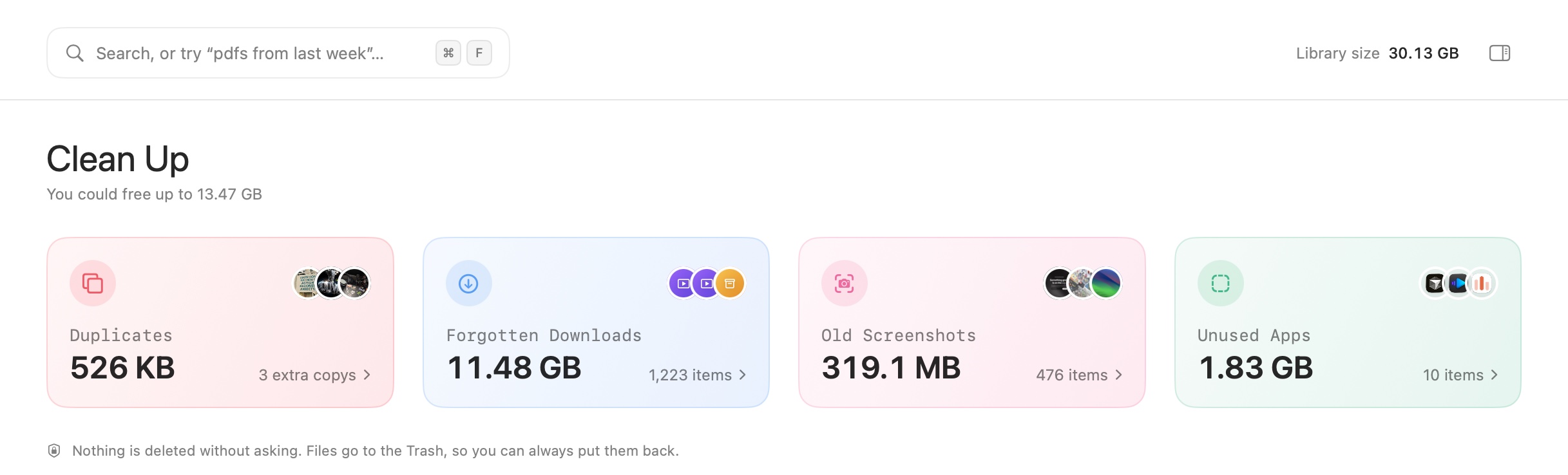
Homy’s Clean Up view does this automatically. It lists old .dmg and .pkg installers alongside forgotten downloads, old screenshots and duplicate files, shows how much space each group takes, and moves anything you pick to the Trash, so you can always put it back. You can also turn on a rule that clears old installers by itself.
Homy is a one-time purchase with no subscription. See everything it does, or if you’re rethinking how you manage files in general, read our honest look at Finder alternatives.
Frequently asked questions
Will deleting a .dmg file uninstall the app?
No, as long as you copied the app into your Applications folder. The .dmg is only the box the app came in. The installed copy in Applications is separate and keeps working after the .dmg is gone.
Why does my Mac say the disk image is in use when I try to delete it?
The .dmg is still mounted, and often the app is running from inside it. Quit the app, eject the disk image from the Finder sidebar or desktop, then move the .dmg to the Trash.
Should I keep .dmg files as a backup?
Usually not. You can download the latest version again from the developer, and Time Machine already backs up your installed apps. Keep a .dmg only for software you can’t easily download again, such as an older version you depend on.
Are .pkg files safe to delete too?
Yes. A .pkg installer has done its job once the installation finishes. Deleting it does not remove the software it installed.